[00:00:39] And they turned me on to your app tempo and that's how we got in touch. And that was a while ago. And I actually, I went, I went back after we were talking to like search for the tweet because I remembered it was a tweet that somebody had sent it. That was, that was the recommendation. And I couldn't find it.\n
[00:00:55] And I just figured it all, you know, things, things go away. But you had an email this week. Tell me about your email. You had.\u00a0\n
[00:01:19] And I was like, wow, this is amazing. You know, they'll power off like the internet and podcasting, I guess. And I, I do want to say thank you, Paul. And he has a feature request that I'll be talking about in the future episodes. And that's something that I'm starting to work on. I think it's something that.\n
[00:01:38] A lot of folks have requested and it's just been sitting on the list because of all the other reasons that that things that I have been shipping with temple, but this, this feature you know, I think this is the best reason to prioritize it all the way to the top. So It's happening now, it's in the works.\n
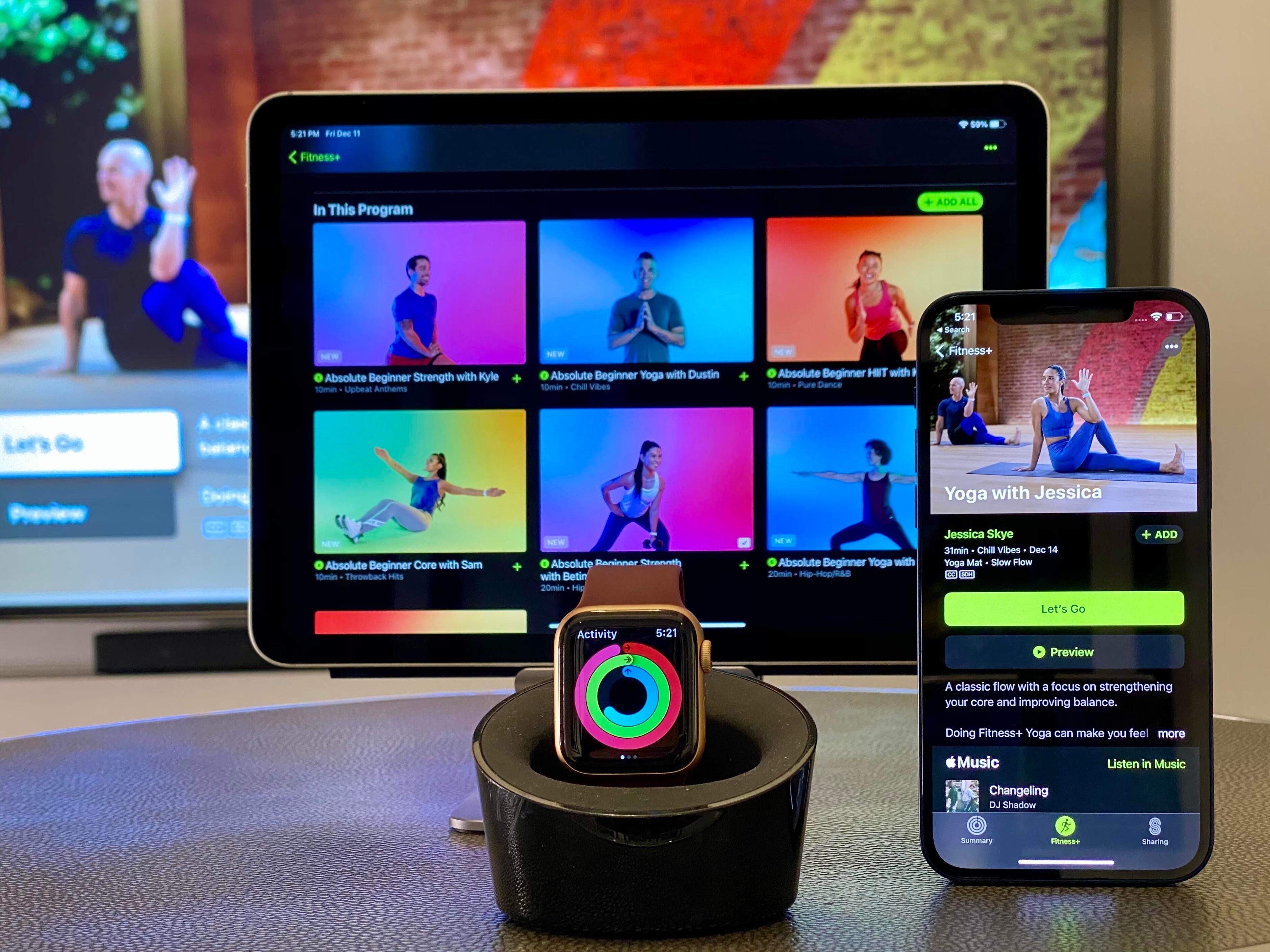
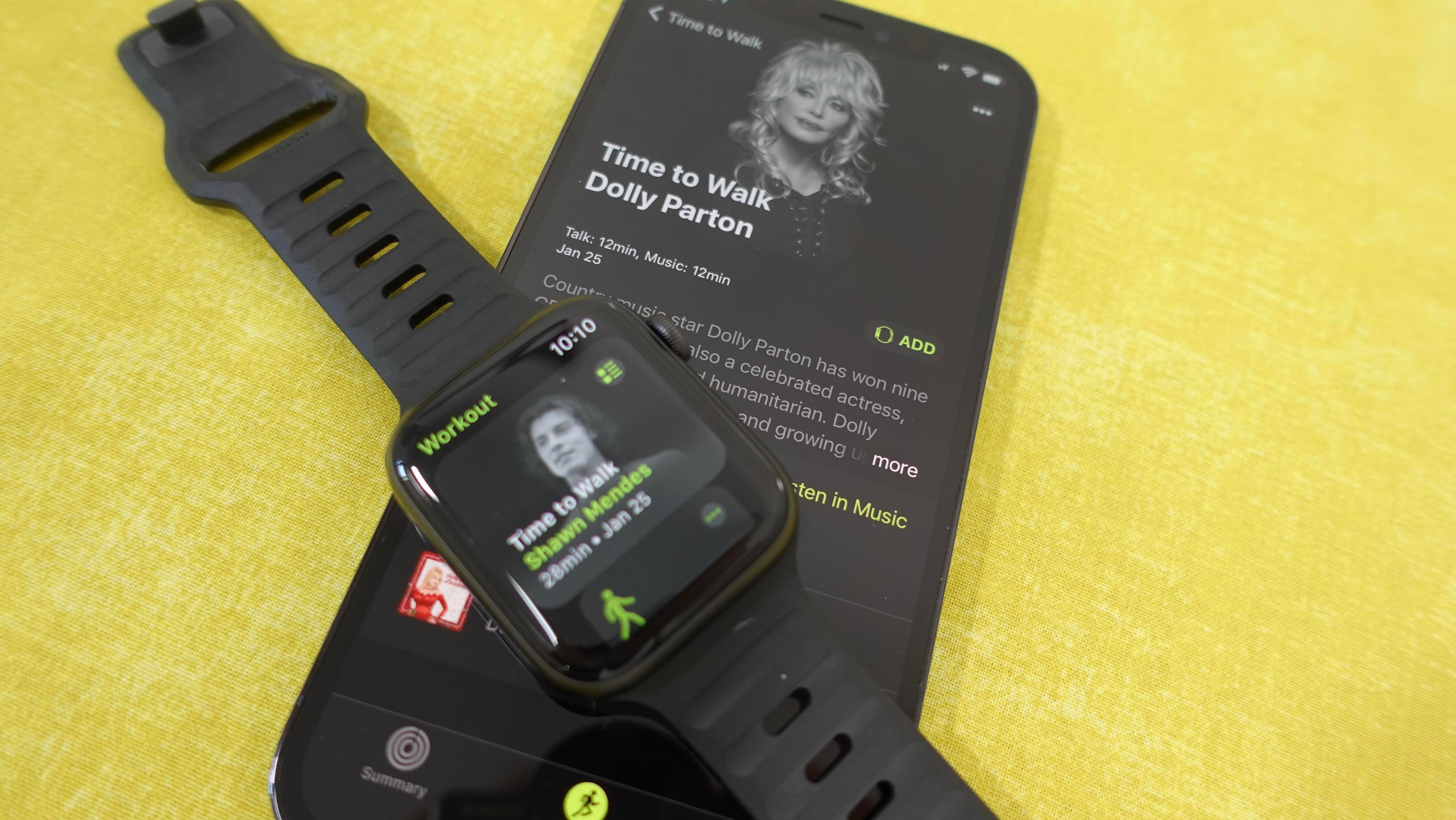
[00:02:19] So on the onset of these six episodes and watch time, you challenged me in the first week to run three different times for five minutes or more. And I didn't. Quite meet that challenge in the first episode. So that was again the homework for the next next week. And then my, my assignment to you was to complete an Apple fitness plus time to walk exercise, which is a walking workout from the Apple watch, which is mixed with storytelling and music from someone who Apple selects.\n
[00:02:51] So I want to begin with you. I think that might be the easiest to do. Did you complete your homework and if so, how did it go?\u00a0\n
[00:03:13]I haven't watched it. I, now it's on my list to go watch it, but essentially you know, she talked about her story from being stage artists to all the way to now being you know and Emmy award winner and you know, it was, to me, the entire walk was generally it, I was surprised by the fact that.\n
[00:03:37]It, it felt so intimate in the sense that it, it almost felt like I was walking with the speaker. I think the combination of having the AirPods on with noise cancellation and the way the recording has been done and the background noises My guess is the timing of my walk. I did it like late in the evening.\n
[00:03:57] So it was like, you know, almost like, you know starting to get dark by the time I finished it was dark and it might have been that at the same time, because all the background noises, there were a few times when I kind of turned around and was like, is there a really somebody like around me or did I just hear somebody?\n
[00:04:11] And it was just like, you know, just from the audio background. Yeah. So that was good. It, it reminded me of the times back in the day when I used to live in Chicago and commute to work, take the train and whatnot. And my walks from the train station to home or work were a good way to like, just.\n
[00:04:30] You know, wind down and wrap up the day. So it just kind of felt like that. And I've done that on and off here, just working from home now, but It's with the last year and pandemic, it's been very difficult to get out, you know, after a certain time, during the day because of kids being home all the time on that.\n
[00:04:48] I mean, I can go out with my kids, but it's very different than when you're just going on a walk by yourself. Right. I did have a technical issue, man. I started the walk. Because I had, so, you know, like I said, last time I don't really run with any music or podcasts or anything. So usually there, you know, I don't have my AirPods on.\n
[00:05:10] So as soon as I put them on, I was like, Oh, I need to, you know, this feels very awkward. And as I started the walk, it was very loud and I couldn't turn the volume down. So I had to stop the walk. And then go look for the volume, turning the crown didn't change anything. So I had to manually go into the now playing app on the watch and turn it down to actually fix that.\n
[00:05:37] So that was kind of like really weird because I would imagine my guess is this is probably just a bug, because that seems like a very bad interaction. But overall, it was just fantastic. The fo the first five minutes were like I was walking in my running shoes, so my feet were like, what's going on here?\n
[00:05:56] You know, like I was like, should I be running? But as soon as I got into it, you know, after the first five minutes it felt really calming and really relaxing. I mean, especially because it had just rained in, so it was like, just. Drizzling. And so just, just to right. Set up for that date, it just felt right.\n
[00:06:17] So yeah. Overall I enjoyed it. Will I do it again? Yes, but cool. I would say the one feature request I would make here for this time to walk thing is After first three days of after three days of doing it, I had it on my watch, but it irked me that it takes like the very first spot when you launch the workout app on the watch.\n
[00:06:42] And I'm just not used to it. You know, like when I'm walking out the door six o'clock in the morning and just trying to like, just start my run. I don't want to like scroll up or down. It's just like, you know, my muscle memory is to say, you know, whatever I have to do to, you know, my fingers know like, okay, this is how I'm going to start to run.\n
[00:07:00] And now I had to like scroll up a little bit and I re I removed it from my list of workouts. So I'll have to like, you know, go back and forth every time I do this workout to maintain it. But yeah, Heidi\u00a0\n
[00:07:21]I haven't done one since then. And that was when it was first released about a month ago. But I'll talk about today. I'm kind of. In a, in a mode where I just want to be active all the time and not be stagnant. And I've already done the gym today. And I, I thought about, well, maybe I'll go back in the evening and do the gym again.\n
[00:07:40] But I think, I think variety is also very important and making. You know, being active, sustainable. And so what I have in mind for after we finished recording today is to go to a bridge and beach that I've spent a lot of time running and do a time to walk exercise there. Just because, you know, I want to be in motion, but I don't necessarily want to.\n
[00:08:04] You know, do anything too intense because I've already exercised today and I don't want to burn out. And so time to walk is, is I think a pretty good fit for that. I also don't want to, I kind of, it's kind of a mix between like bringing a podcast or music and it's, it's a little bit of both in that it's.\n
[00:08:23] It's spoken word and then in some music involved as well. So I'm looking forward to having that in my rotation, but I totally understand what you mean about it being right up top because they're promoting the heck out of it right now as it's brand new. Right. And, and that means putting that at the top of the list.\n
[00:08:59] Well, maybe, maybe a dozen or so, maybe 10 of these in total, and then they're not going to have any more until, you know, they decide to do it again. So at that point it really shouldn't be at the top. I mean, that's, that's a very good point. So for me as listeners will know, I postponed last week's episode and took some personal time both from, from wash time and from happy hour.\n
[00:09:21] And it took a couple of personal days on Thursday and Friday last week to sort of just focus on, on things happening in life. And and I will say I did not run first week that I was challenged to run for five minutes or more for three, three, three different times. Initially really it was that I was just putting it off and I knew I only had to do it at only at least three times.\n
[00:09:44] And so that meant I could do like Monday, Tuesday, Wednesday but life got in the way come Monday, Tuesday, Wednesday, and all of a sudden those days that I put it off. Four weren't available in the same way. And, and so that was kind of a lesson all on its own. Do things when you can do them, not when you think you might be able to do them.\n
[00:10:02] And and then the next, the week after, so this last week that we're in, I, I did I certainly did complete the exercise and running for five minutes or more on three different days. I've also kind of. Decided, I mean, we're, we're going to talk about some of our high level fitness goals later in this episode, but I've also kind of decided that maybe, well, certainly that, that right now in the condition that I'm in physically.\n
[00:10:28] It's running is, is in the rotation because I, I can't ever just go for a walk and be content. I always like, like you did, when you first started that walk with your running shoes on, you felt like, Oh, should you, so you start running. I always feel that even if I tell myself I don't want to run, you know, all start a walk and it's like this could, this could be more fun if I ride, you know, it's more intense and, and just the whole feeling is a bit different.\n
[00:10:52]And so I think running will always be a part of my rotation, but for the short term, While I'm not necessarily training for anything. And I don't have a goal that I'm trying to reach. I think that running is just one part of a full week exercise. Most of it, what, I've, what I've found I did take, I took a walk the other day and I was just kind of, you know, in my head thinking and I didn't even bring my watch or anything.\n
[00:11:23] I just went out for a walk on my own and And just kind of walked into my legs, started to burn and tingle a little bit, you know, from, from, from moving and then turned around. And it was, it was you know, it was, it was probably a mile and a half walk. But after that I was kind of, that kind, kinda like woke me up and then I.\n
[00:11:42] Felt motivated to go to the gym and, you know, wear a mask and bring you know, a towel and clean everything off really well. But I was just kind of, sort of in a place where I needed sort of a, a people environment. And that was the thing that kind of lifted my spirits. And so, yeah. I did, I did run on the treadmill and that affirmed again, that running outdoors is just so much easier for me than like running on a treadmill because when I run outside for the, for the five minutes, I can run without stopping.\n
[00:12:15] I can run a mile without stopping. Like that's not a problem on the treadmill though. I feel the need to like slow it down and walk and catch my breath. And like, I can't, I don't know. It's my, I think I'm overdoing it. Or maybe it's just easier outside than on a treadmill, but\u00a0\n
[00:12:40]Primarily for the reason that, you know I, I just find it a boring and the, because it's, it's, it just seems like a different kind of mechanical movement than running outside. Like if you, if you look at the pace chart for any run done outside what you would notice is the pace never stays exactly the same.\n
[00:13:03] And the fact that the treadmill just imposes that on you. It's actually over time, once you have, you know, Gotten your legs back, you're running legs back in terms of like, just being able to like keep running. It's good for me, a certain level of consistency, you can actually get on a treadmill and you can maintain a certain level of pace.\n
[00:13:25] And then it, you know, it just works well. But if you're just starting It's it's actually probably harder.\u00a0\n
[00:13:52] Break or whatever time you need. But it's not like, you know, exact same intervals. It's more like, you know, run for 10 minutes, take a minute off and just walk. And it's actually something that he has marathon programs for that kind of stuff. And people run like crazy fast marathons. Based on that trend.\n
[00:14:09] Like they, they actually do that even do you know the train for that? And some people even do, I don't know. I think some people do it during the races too. So it's, there, there is value to like taking short breaks within your runs. And if you're on a treadmill, especially just starting and trying to get back into the rhythm, this might be, you know, worth it to try, like just run for five minutes and then.\n
[00:14:31] You know, do it for like, you know, walk for 30 seconds or something like that. Whatever feels comfortable.\u00a0\n
[00:14:54] And instead of, you know, buttons that you mash or a speed that you input and it just felt really natural. Like if you want to slow down a little bit, you just do kind of a gesture over the wheel and it slows you down. And it's almost like an in sync with your motion. Then if you want to speed up, you do the same thing and kind of the bigger the motion, the more you go.\n
[00:15:11]But, but again, that is an exorbitantly expensive treadmill. And. And I wish that interface was copied by everybody that makes treadmills of all of all prices. But other than that, the elliptical is, is really where I started getting in shape for the first time back around 2017. 20, well, 2016, I would say.\n
[00:15:30]And that, that's a thing where it's low friction enough and it, it doesn't beat you up, but you do, you know, I, I end it by sweating a lot. And my heart rate is consistently up and I burn calories and I'm happy with it. And I can do different things. I can listen to music. I can listen to a podcast.\n
[00:15:50] I can, I can watch a video or something and pass the time by. And, and that, that's what I found the most enjoyment just forgetting cardio this past week is, is doing that. So, so, so mixing in some runs, but at least doing a half an hour of elliptical when When I exercise and that's been, that's been, that's been really good for me.\n
[00:16:11] I think that's, that's what I did exclusively. Like every single day, whenever I, I first lost a bunch of weight. And then when I lost the weight, I was then kind of getting in deeper and running was not easy, but it was much more approachable than it is today for me. And I think that that's kind of the path I'm going to go back on as is focused a lot on elliptical.\n
[00:16:34]You know, eating better and, and also, you know, mixing in things like I've, I've certainly felt that my arms aren't as work as they should be, or as, as they have in the past. So I've been doing, you know, different, different weights. And, and that's. That's something that I'm lacking in. And so at the end of the day, if I, if I feel sore, you know, in my arms, I feel better than then.\n
[00:16:55] I just kind of feel, you know, like they're just kind of flailing around. And I definitely feel like over the last, you know, several months I've lost some strength that I used to have. And so yeah, and, and it was, again, all of this is. Comes from your, your homework challenge of, you know, try to make a habit out of running and it's become I'll, I'll put on my running shoes, you know, to, to, to get out and getting that mindset.\n
[00:17:20] And then from there now I'm already in the mode of, you know, movement. And what else do I want to do? And I think now that it's not going to be a hard habit to, to build because there's more motivation there that I had before. To, to sort of self-improve and everything. So it's, it's so far so good.\n
[00:18:05]What I've found myself getting into the rhythm of now is after I finished working, then the next thing I do is I go exercise and I think that's. Extremely sustainable based on my schedule and my kids' schedules. And, you know, when basically I, if I finished working at 4:00 PM central, then I can go and I'll, I'll, I'll have between four, four o'clock and like five 30, five 45 to pick up the kids.\n
[00:18:38] And that gives me a lot of flexibility and, and spending a full hour in the gym or something, you know, and And, and, and so that that's, that's kind of where I'm successful is if I can make something that's that's I can do over and over again as a routine versus I found some time here. I found some time there.\n
[00:18:59]I, I do enjoy first thing in the morning. And actually today I had an opportunity to go to the gym earlier than later because I needed a, to run an errand and I happened to be right, right by the gym. And so it was all right. And I, and again, I like having done something earlier in the day than later.\n
[00:19:15] But also, I don't, I don't mind the chance to sleep in and then jump into work. And then as soon as I'm done working, use the exercise as a way to decompress, I think that's all right. And, and that's so, so I think that, that that's, the answer really is, is after work, not too late in the day, but, but, you know, early evening.\n
[00:19:59]Yeah. And that's fine, but it's just like teaching error. You know, you're subconsciously like your body also gets used to that habit and that format offline, this is when things happen. And this is when nutrition happens. This has been sleep happens which kind of helps overall in the long run\u00a0\n
[00:20:24] Yeah, exactly. Exactly. So I look back, I look forward to not reporting back that I've had challenges, but that I've had successes in the coming weeks. And, and sharing that here really quickly. I also wanted to talk a bit about kind of what me down last week and kind of where my head space has been because I'm feeling better now and it's easier to talk about on the upswing then than, you know, when you're in the pets.\n
[00:20:46]But basically. You know, I, I was very open. And when I started doing this podcast, watch times talk about mental health. Yeah. And, and some specific situations I was going through that I found challenging and where the watch and health and fitness were helpful. And. And last August, I made the decision to move to Orlando and focus heavily on uncovering space and you know, being close to NASA and Kennedy space center.\n
[00:21:15] And I made a ton of friends there and more friends that I've made. Before, you know, living in Mississippi, you know, and it's and way faster. And so I was very happy there. But, but my, but my kids were here in Mississippi and it's an eight hour drive and it was all kind of the, the reaction to getting divorced after five years and being with the person that I was with for 10 years.\n
[00:21:40] And You know, I, I think it was me trying to make the best of a, kind of a rotten situation that I was in. And and it served me well, you know, some of my goals in going there were to focus on my health and fitness and self-improvement, and I did not make time for that. And those four months that I was there.\n
[00:21:56]But I made the decision I'd say last, last week too. Began the process of moving back so that I could see my kids more consistently than I was. It's something that whenever I, I, my, my, my, my stepdaughter she's lived with me since she was 10 months old. And she's, she goes to her dad's every other weekend, but for most of the time she she's with us and.\n
[00:22:20] Then when my son was born, you know, there were issues in the marriage before that and after that, but it was something that I, I just couldn't conceive the, the notion of not seeing my son every single day. And so we stayed together and try it again and then took some time apart and then got back together again.\n
[00:22:36] And you know, ultimately it didn't, didn't go as planned, but it kinda, it kind of hit me that. You know, in the beginning, I could never see myself giving good time with my kids. And then ultimately what I was doing was putting a really big barrier between myself and my kids and that I wasn't happy with with how much I was seeing them.\n
[00:22:53]And so I've clearly began the process of moving back to Mississippi and it'll be done in just a couple of weeks. So I'll be kind of back and forth in the meantime. But also I kind of got in my head that. You know, I want to unwind this distancing that I've done to the point where, you know, I want to fight for my marriage and I want the family to be together in the same house that I, that I, I don't accept that, you know, there's when my son, he's three that there's this 15 years of like, you know, parenting separately and apart.\n
[00:23:25]And just this really determined about that and, and almost like It it's almost like, you know, I had this big idea and it didn't, it didn't matter. I was just going to go and do it. And of course the other person is, is, you know, half of the equation. And there's sort of just no interest in, in doing that right now or in the future.\n
[00:23:45] And you know, she's happily happy in a, in a new relationship and that's been difficult for me to kind of come around on and it's. Taking a lot of counsel with friends and, and, and, you know, self-thought, and, and, and time spent exercising. When that helps me so much for the endorphins and everything, you just feel better than, than doing nothing.\n
[00:24:07]To kind of realize, you know, my, my part in a lot of things and the, the costs of me going away for those four months, you know, which was going to be much longer than that. And, and, and that I can't just walk back in and say, you know, let's, let's put everything back together again. So I've slowly had to transition from that big lofty goal I had of kind of fixing everything and, and, and thinking that because I learned lessons and, and, you know, a Mueller and wiser now, Things can just fall into place again that it's not entirely up to me.\n
[00:24:38] And so I've had to accept that this is still where I want to be, you know, with my kids so I can have them every other week. And you know, that, that being available, being here and, and, and accessible is. Is all that's, you know, I nothing's owed to me and that I, you know, I I'm supposed to be here and be available.\n
[00:25:01] And so there have already been situations in the last week where I've been helpful just in being, being present and being, you know, the next town over instead of eight hours away. But it has been a big, like punch in the gut to, to, to go from four months of trying to kind of get over, you know, a five-year marriage to, you know, getting the idea in my head that I can, I can put this back together.\n
[00:25:26] And it's obvious that it's worth it, that it, that it's meant to be this way. And then if I work hard enough that I can have this goal and then realizing that it's, I'm only half of the equation and the other half of, you know, the, the other side of it as a whole other person with their own life. And so so it's, it's been, I would say it's been very hard this past week, too.\n
[00:25:47] Kind of realign my expectations and decide, you know, kind of realize that the house that you bought together, isn't, isn't my home anymore. And you know, that there's this whole other life that has to take place because we're not together anymore. And I've slowly been in it kind of been accepting it and putting the pieces together and that.\n
[00:26:06] You know, what is my identity on my own here? And, you know, the easy things, where will I live? How soon? Well, he moved there and, and then, and then kind of finding the things that, that brought me joy in the time when we had a part before, which is, you know, Definitely running and racing. I think when those things come back and full swing, I will be positioned to participate in a way I'm proud of, and in the meantime, like I mentioned before that, that beach and that bridge, that's where I learned to run in the first place.\n
[00:26:37] Because the bridge has like a really steep incline and then a really steep decline. Well, not quite as steep as the incline and then a little bit of flat, and then you reverse it and see you've got a long way of inclined and then a really steep decline. And it's tough enough for me that it was never, it's never about speed.\n
[00:26:53] It's more endurance and just finishing it. And then when I run on the beach, it's all flat. So, so I've found that in coming back though, that location is going to be very special to me because. It's it's in a lot of ways where I found myself before. And, and honestly, the first time I got in shape, you know, I wanted to lose weight and feel better about myself was in a patch in the marriage.\n
[00:27:17] That was one of the big kind of milestones toward it, not working out together. And so I, I really wanted to. You know, focused on myself and improve myself, whether it be for me or for, you know, me and the marriage and for a while, it was for the marriage and, and, you know, for the time being it's, it's evident that it's going to be for me.\n
[00:27:37]But I, I so recall that there were a lot of times where I felt just like I was a better parent, more active and more alert because I was active every day. It gave myself that time. So something I mentioned to you before we started recording, is that. I find that it's easier to focus on health and fitness in a period where I'm trying to work out of workout when we out of a problem than when I'm perfectly content.\n
[00:27:59] And, you know, I'm, I'm not trying to work out myself out of a problem. So it's, it's been a fun one, but you know, not, not really, but it will, it will.\u00a0\n
[00:28:39] I think it matters. You needed your time away. You took that time and now you're back to be closer to your kid, I think. Yeah, I think that's I respect that and I, I appreciate that. Thank you for doing that. And staying active. As kids grow just becomes more and more important because you want to stay active with them.\n
[00:29:01] You want to do things with them. And you have your memories but you're going to build more memories and, you know, have more stories to tell and show things around to your kids and you know, have more good times together. So, yeah. Yeah.\u00a0\n
[00:29:28] You know, no gap at all. And that was kind of, kind of a big deal for me. And, and so it's, it's a, it's a new chapter, you know, back to an old chapter, but in a different way. And I'm so happy that I've got, you know, friends like you and healthy habits to, to, to track, to kind of get me through. So it'll be all right.\n
Sponsored by Pillow\n
[00:29:47] 9to5Mac Watch Time is sponsored this week by pillow. Getting a good night's sleep is underrated, but with a little help, it can be life changing. Pillow is an all-in-one sleep tracking solution. To help you be more aware of your sleep patterns and discover what might be affecting your sleep quality. If you have enough watch tracking your sleep is as easy as awaring your Apple watch during sleep pillow will track and analyze your sleep automatically.\n
[00:30:11] One of Polo's most loved features is the ability to get a detailed heart rate diagram of every sleep session. And you can even compare a sleep quality with your weight. The steps, caffeine consumption, and many more health metrics to discover how they might be affecting our sleep pillow. Can optionally record sounds you make during sleep from sleep, talking to sleep apnea or snoring or other unexpected noises that might be affecting your sleep.\n
[00:30:35] A lot of users have been surprised by these results. Pillow is also very privacy minded. All of your sleep and audio data is encrypted and stored on your device and your iCloud storage account. Using end-to-end encryption pillow does not have these are accounts so you can use it anonymously and it doesn't collect or send your personal data anywhere else.\n
[00:30:57] Naps boost your focus, creativity, and overall wellbeing. If you're working from home, you can also take naps using pillows, power nap mode. If you need an alarm, pillow can wake you up using your iPhone, Apple watch or iPad, and a pillow uses a feature called extended runtime that minimizes battery consumption on the Apple watch.\n
[00:31:19] Pillow is available on the app store for iPhone, Apple watch and iPad. Discover all the pillars features@navybox.com slash pillow and it's N E Y B O x.com\/p I L L O w. Sleep well and stay safe. My thanks to Pello for sponsoring nine to five Mac watch time. Let's, let's talk a bit about tempo this week, because I was happy that last one on the last episode, some new users were turned on to tempo.\n
[00:31:48] And and so let's jump into a little bit of a temper discussion this week. Yeah.\u00a0\n
Tempo update\n
[00:31:53] Rahul Matta: So I just released an update to template this morning with a brand new feature called photo summary. And it's, it's small feature, but it's really fun. And it's, it's one of those things, which, you know, you don't think much about it because, you know, you're trying to not be a social network or stay private and whatnot, but at the same time it's something that has over time, just, you know, just been there on my, you know, On my list on my things to do or how I would make it or whatnot, because, you know, at the end of the day, we are all social creatures.\n
[00:32:32]Even if we don't force things on, like whatever our social networks are, share every, every little bit off our lives everywhere. We do like to share with friends and family and I find myself, you know, every now and then raving about my workouts for whatever reasons. And lately I did that with two workouts.\n
[00:32:52] One was actually really cold morning here in Boston. I had to get my run in before seven o'clock. So it was like seven degrees outside. And gosh. Yeah. And I mean, I, I, I think. As a runner at this point, I have adequate gear to like cover any kind of like, you know, Chile weather situation. So I was, I was well covered, but when I got back home, I saw myself in the mirror and hearing in Massachusetts, you also have to have a mask on even when you're just walking or whatnot.\n
[00:33:31] So just out of habit at this point, I just always have a mask. So it's, it was like, there was like drips of my own sweat, just frozen as icicles in line. And then there was like frost. Which was on my inter hat. And then there was like this layer of like ice on my outer, outer outermost layer on my top here.\n
[00:33:56] So it, it w it was just like a interesting picture that I sent it to my to my siblings. And I had to write, Oh, I went for a run and this is what happened this morning. And That was like one nudge towards this feature. And the second one came along when I was finishing up a run, it started snowing.\n
[00:34:15] I knew it was going to snow, but by the time it started snowing, I was like, Oh it started earlier than I expected it. And I got home showered looked outside and it was just. It wasn't like white out, but at the same time, it was like snow enough on the ground that I was like, okay, I wouldn't have left if this were, these were the conditions.\n
[00:34:36] So I took a picture and I said, I, I just dodged this. The last 30 minutes was really blissful, but at the same time, it was like starting to be like this. And I sent that picture to again, to my friends. So in both the cases it was now like, you know, I was like, you know, tempo should be able to do this for me in some form.\n
[00:34:55] Right. It's like, yes, I'm taking a picture and sending a picture. But at the same time, I'm also saying this is a workout I did. And For a very long time. I wanted to have some sort of a configuration option in the workout where you could actually share a story like that. And so as I started basically building this feature over now with photo summary, it's essentially a sharing feature where you can.\n
[00:35:22] Pick the summary stats that you want to include. It's like layered on top of a picture. You select a picture you want to share or take a picture and you can hide your location if you want to. It's actually hidden my default, just from a privacy perspective, it includes your date, timestamp and you know, your weather and, you know, it, it looks really fun.\n
[00:35:44] And as I started doing that, what I realized was like, you know not every picture is good enough to you know, superimposed text on obviously, so had to build some additional configurable there where you can also blur the picture or add shadow and whatnot. And it turned into like a fun little feature, which has its own life now.\n
[00:36:06] And I have like, I don't know. So many ideas now around like, you know, just as I was beta testing and folks were like, you know, how about videos or how about, I, I want to do it in landscape and things like that. So that's right now it only supports portrait, but you can include a landscape image and just pan across and just pick a slice of it.\n
[00:36:24]Generally a fun little thing. So folks out there do try it. And if you share it on, I'm not saying share everything, but if you do share it on Twitter or something, please tag tempo. So I know you're using it and would love to see your stories out there\u00a0\n
[00:36:39] Zac Hall: and you, and you sent me a photo. Last week after you completed your time to walk exercise, you sent me two and one was a photo of your environment.\n
[00:36:50] And then one was a photo of the character from orange is the new black. And is this, this is what you're talking about from\u00a0\n
[00:36:56] Rahul Matta: exactly. That's a that's exactly. That was like the first initial setup that I had just completed. And like, I was just starting to play with the feature. So it was like, okay. Well, one way to show my homework here would be share it as a picture.\n
[00:37:11]And it was, you know, like I said, it was raining that day and it was just like perfect time of the day. So as I was walking up a Hill, I saw like really, you know, pictures kind of Corner of the area. And I just took a picture and I was like, yeah, now I can share this picture with the workout. So that's that's and the the portrait picture of ouzo was actually something that, so this was another interesting thing.\n
[00:37:33] My watch tapped me a couple of times as I was doing that time for walk workout. And as I looked at, looked at my screen, it was the picture of the speaker. Or there were a couple of times, one was a picture of her. One was a picture of her and her sister when they were kids. And one was like a landmark location that she was talking about.\n
[00:37:56] So that's another interesting thing that I, I. There was a part of me that was like, okay, why can't I see this on my phone screen? Can you like just plop it on my phone screen? Because the watch screen is small enough that I really want to do it. And I actually went back just to take screenshot of that picture because it was like, this is interesting.\n
[00:38:13] Do I get back to it? That's\u00a0\n
[00:38:15] Zac Hall: that's right. And it looks very good on the Fullscreen watches series foreign later. Because it's, it's just, it's the whole screen. I, I enjoy that part about it as well. And everyone has the same feedback that it should be available on the phone after the fact, because You know, in the moment it's on the watch and the tap is helpful, but having, having it to reference back to, I think, would be nice.\n
[00:38:35] And I also like the whole, the whole format of the time to walk storytelling, because it does include talking music. And in, in, in that case, you know, the imagery and I would love to create experiences like that if it was something that anyone could create in, in the future. So it's a really neat Go ahead.\n
[00:38:51] I was\u00a0\n
[00:38:52] Rahul Matta: just going to add, like, that's, that's one thing that I found. I mean, I mentioned that the intimacy with the speaker as if you're with them is really interesting, but in a good way, right? I mean, you can listen to music, you can listen to podcasts. Podcasts usually end up being like, you know, either somebody reading news to you or some, someone else having a conversation, right?\n
[00:39:13] So you become like more like an audience, kind of a PR actor there where you're just listening to somebody else, having conversation with some other folks. So. In this case, it just felt like you're just going with the flow. And in a way it also may ma maintains your flow. Right? The, the rhythm is maintained by the speaker as they are locked because they are walking in they're talking.\n
[00:39:33] So it just feels like you're right there and just feels natural that way.\u00a0\n
[00:39:39] Zac Hall: Oh, that's right. So, so quickly let's, let's, let's talk about some high-level fitness goals that we have. Just, just sort of, you know, in, in the months ahead for me, obviously, it's, it's something I talk about a lot, which is, you know, there's this big goal of having a return to.\n
[00:39:53] Form and you know, looking at the last year and not being satisfied with my amount of time Tivity you know, even though there is this pandemic, there was also you know, can be a time to lean in to, to exercise and fitness and is not something that I've done. And so now, as I'm in this sort of transition phase in my life I'm, I'm heavily relying on, on activity too.\n
[00:40:16] Sort of keep me focused on the road ahead and not the road behind me and stay in motion and sort of have that, that active movement be symbolic for, you know, progressing forward. And I think the results will be that I ended up being happy, kind of with my fitness level, like I was before and hopefully exceed it.\n
[00:40:39]But it's, it's, it's certainly, you know, just finding, finding. Healthy habits and a repeatable routine. And, and that time to improve, you know, my myself and how I feel.\u00a0\n
[00:40:54] Rahul Matta: That sounds wonderful. But I do want to challenge here a little bit to go a little deeper. And I mean, it doesn't have to be like for the week or the month, but more like for this year some, some way to quantify this, right.\n
[00:41:09]Whether that is walk 500 miles or worked out like so many hours through the ear. Right. I mean, like, it could be just that. Right. So it it's, it doesn't have to be like you have to walk or run or do just, just take a number that's the easiest to approach. Right. Because I think that would just keep you consistent.\n
[00:41:32]And. Not like, you know, our brains have a funny way off, like just convincing ourselves to like, just not worry about things and, you know, be happy with what we have. And then you put a challenge in front of it. It tries to do it and do better at times. So I think setting some sort of a quantifiable goal would really help here.\n
[00:41:55] Zac Hall: Okay. I, I mean, I know that, so I know, and super important. I mean, it's important for long-term health, but in terms of just, you know how you look and everything, it's not important. And and when I was around. When I first got into fitness, I went from like two 10 down to one Fest day and felt amazing.\n
[00:42:16] And it took a long time to gain it back and a lot of bad habits to gain it back. But it, it, it. In retrospect, it's like a lot of work to break up all the progress that I'd made. And I felt happy with where I was. And so I like to, you know, right now I'm at like two Oh four. So, so not quite where I ended up before, but certainly when I was around one 85, I was trying to lose some weight and, you know, get back to that one 50 goal that I had.\n
[00:42:43]I'm I'm five, nine, five, 10. So, so that gives you an idea and So I think, you know, if, if, if by the end of the year I had, you know, I'm at one 80, again. Well, where I kind of started realizing, Oh, I've gained 30 pounds and let go of a lot of healthy habits. I think that would be a huge win mentally for me and quantifying the effort, you know, being meaningful.\n
[00:43:10]The other thing is, is I would say specifically to exercise. At least six days a week. When I, yeah, and in that, you know, one of the days can be, you know, an hour long walk or something, and elliptical is something that's sustainable for me. Like when I, when I, even, when I got into running, I would run at the beginning just one, one day per week, and that I would focus on a 5k and I would do a little pickle on the other days.\n
[00:43:36]And even that I think is maybe more than I have to do. And so You know, mix it up, but I really do enjoy. You know, trying to, trying to just become stronger and, and film, you know, I know right now I'm at like negative in terms of how strong I am. You know, I don't want to be like a muscle man, but I also don't want to be weak.\n
[00:43:56] And so I'm exercising at least six days a week. I don't I'm, I'm at the point now where I don't necessarily care about an Apple watch streak anymore. It's, it's less the, the motivation there and it's more the result and. And Russia is important. And so I think that if I find some way to exercise for at least half an hour, you know, six days a week I think that'd be really cool.\n
[00:44:20] Rahul Matta: Yeah. I like that goal. I think generally speaking weight is something that should be like a after kind of it's like in. It's more of a result than like a goal to me. Sure. And I think it just helps to like, you know, you could hit your weight goal, like halfway through the year. Does that mean, and the other second half becomes more like, you know, inconsistent again with working out that that's, that's where the bad habits start forming.\n
[00:44:47] Right. So I think, I think having the six days the weekly goal, like, you know, that means like three hours a week or something just seems. That's great. I think that's, that's a, that's a great goal. How are you going to track it\u00a0\n
[00:45:03] Zac Hall: or the watch? I mean, it's my biggest motivation to, to keep up with, with, you know, quantifying the effort is the watch, because on, on time when, you know, last week, when I felt.\n
[00:45:18] Like not getting out of bed. I also didn't fully put it on my watch, you know, and I think it kind of goes hand in hand. And I think that, you know, I think I'm definitely associate the watch with, with at least making an effort and not just, you know, passively.\u00a0\n
[00:45:33] Rahul Matta: Okay. Yeah. I was also thinking more from a perspective of like having the, some sort of foot log or something where, you know, if we're running template does this very, it shows you a mileage and whatnot, but.\n
[00:45:45] Generally like, you know, if you have something where if it shows you the pattern, it just drives that commitment for strongly. So, yeah, it's, it's interesting. It's something that I have thought about with activity stats, which is app we launched last week on the show. So yeah, maybe I'll send you a beta link for something.\n
[00:46:07] Zac Hall: Cool. Awesome. What about for you in terms of your goals for high level fitness goals this year?\u00a0\n
Fitness Goals Rahul: 30 miles a week\n
[00:46:11]Rahul Matta: My goals are like, kind of like at this point, multi-layered I do have one simple goal, which is even with everything going on last year with the pandemic. I was able to hit close to like, I think 1100 some miles through the year.\n
[00:46:30]Which is, it was kind of odd realization for me come November, December timeframe that I was getting close to 1200 miles because usually my cycle goes more like, you know first quarter of the year is like, take it easy. It's there, there is consistency, but low mileage through spring slash summer timeframe the miles peak.\n
[00:46:55] And then I run a fall marathon and then I taper off for the year. So usually it ends up being like in the 1300 mile. And I'm usually happy with that. But last year, it was like more or less consistent, like 20, 25 miles a week. And that made me realize that not running a marathon through the year and just going for my runs still allowed me to like, maintain that kind of a rhythm.\n
[00:47:29] And not generally not worry about like, you know, doing 20 milers on the weekend or something like that. And what I realized was there is, you know, I, I'm not too far from like being able to do 30 miles a week. If I really am disciplined and sincere with Mike. Focused like in terms of like, I have to go get a run aid.\n
[00:47:55] Like I, as I saw my trends like my most common run last year was like a four mile run, which is a nice out and back run that I do. If there's nothing else going on and I could do it anytime during the day, it's just like the same path I take. And it really takes like, it's not about like the energy levels or.\n
[00:48:18] I don't have, you know, I can't do it physically more. It's just that, it's the mental thing that I have not committed to in terms of like, let me just push for a six mile or eight mile run. So this year, what I have been doing more is a consistency and trying to push that four mile to like six or eight.\n
[00:48:40] During the week, and I haven't even run like more than 10 miles over the weekends, but on the weekends, I'm trying to do longer like eight to 10 miles both the days of the weekends and trying to hit more 30 milers per week. So my goal really for this week is like try to hit as many 30 miles as possible, which, you know, roughly will take me to 1500 miles for the year.\n
[00:49:03]And that would be fantastic because. I haven't done that in a couple of years, maybe even five years at this point. So hopefully I can maintain that throughout the year and then Chicago marathon, as far as we know right now, seems like it will happen. That's I'm registered for it in October. So that will peak me through the marathon training during summer.\n
[00:49:28] And what I realized is, so th this is where the whole multilayer thing comes in, because what I'm realizing the best time for me to run, where I can just do it and stay consistent with is first thing in the morning. And if I do that, like last year, I was able to run any time during the day, depending on like, you know, all the scheduling with kids and, you know, whatnot.\n
[00:49:50] But at the end of the day, there were a lot of time where. I would just skip it because it was like five in the evening. I could either hang out with family in the backyard or I could just go for a run and I would be like, yeah, forget it. Yeah. So this year I'm hopeful that this pattern of like, you know, I was talking about like waking up at like five 30, six in the morning and running even now.\n
[00:50:13] I mean, it's getting lighter outside earlier during the days now. So I'm doing that during the winter. So my goal is maintain it and just wake up early, get my runs in and not worry about anything else before I get my run in and continue that throughout the year. And. Just carry that. That's, that's where I'm at.\n
[00:50:33]Hopefully 1500 would be a good number to hit this year.\u00a0\n
Watch Tips: Stacking workouts\n
[00:50:38] Zac Hall: I love that. That's that's that makes mindful easier. And for tips this week, I wanted to mention the ability to. Sort of stack workouts whenever you're using Apple's workout app. It wasn't always this way initially and like watch us one and two, you had to stop a workout and started a new one and there was no way to sort of create a session among different exercises and w in one workout.\n
[00:50:58]I think around watch I was through the added the ability to. Swipe over to one of the screens in the workout and tap the plus button. And then that pauses the current workout, your end. And you go through the lesson, you can pick the next one that you're going to do. And that's, that's really helpful if you're doing a bunch of different stuff within one session.\n
[00:51:19]But it's also helpful in that. Well, show us seven that we're on added some new workouts, including cool-down and that's really useful. So before I know I would I'd want the best data for the actual workout itself. And I wouldn't track anything from the cool-down session. It would be, you know, in the workout and then do a little bit of a cool-down down and not, not track it at all.\n
[00:51:46]But when you get in the habit of stacking workouts with that plus button, then you can. You know, actually get better data from, from nuclear position as well. And, and they separated as a different workout type than, than maybe what the intensive thing that you're doing is so I liked that and, and kind of my routine is if I'm in the gym, I'll kind of go from strength training.\n
[00:52:10]And then get my heart up on the elliptical and then maybe try the treadmill for a bit and having all of those be just, you know, added to gather. And then at the end, you see your troublesome memory of time and calories and. And everything it's really useful and that you don't have to do the math yourself and it's, it's there for you.\n
[00:52:29]I find that to be a lot better than, than stopping and starting again. And especially in, in giving yourself the time for cool-down, since it's a dedicated option this, this year, what about you? Yeah,\u00a0\n
Watch Tips: Workout view customization\n
[00:52:40] Rahul Matta: so I have something called customizing workout views, and What it does is it allows you to see the data fields that you care about during your workout on your watch instead of the default.\n
[00:52:56]And the way it works is you essentially. So the way you configure it is from the watch app on your iPhone go under the workout app section and in there. Do you have The very top row is the workout view customization. And in there you can actually pick the workouts that you want to customize for.\n
[00:53:15] So for example, my running I actually have like four metrics, which is not the default. It is the rolling pace, distance duration, and the average pace. I don't even look at the heart rate right now. I'm just focused on like, you know, just make sure I have a consistent rhythm going and whatnot. But.\n
[00:53:30] There are times during summer when it's too hot outside. So I'll change it to like, you know, paying attention to my heart rate and not overdoing it. That makes sense. And it's really useful. I find it more useful. Yeah. Even as like a trick for myself to identify if I started, you know, say for by mistake wrong workout.\n
[00:53:49] So my outdoor Watts have different set of fields in a different order versus the outdoor runs versus the indoor runs. So at this point, it's just like, you know, when you're, when you look at the screen, you glimpse, when you start to work out and it. If it looks as different, a pattern of colors and fields, you instantly know I'm running and I might've started something else.\n
[00:54:12] So you abort the run and you'd restart it. So it really works out well. I think there are other ways that you can actually configure More than these metrics the third party apps, but then you kind of lose the workout app you know, the support and the functionality of that. So I like this overall.\n
[00:54:32] I think this is a good balance. Yeah,\u00a0\n
[00:54:34] Zac Hall: I agree. That's one of the best ways to customize the, I mean, customizing your metrics is one of the best ways to personalize what you're tracking and and, and even during a workout, you can use the crown to scroll between what's highlighted. So yeah. And it's a very small thing, but if, if what you, if you have one thing that's important to you in that session, then highlighting the thing that's important.\n
Health homework assignments\n
[00:54:55] It makes it more glanceable. So very awesome tips for homework this week. I, I don't know what you have in mind for me. Free for you. I just challenge you to track some sleep, to sleep with your Apple watch for, you know, two or three nights. And, and next time we talk next week, look at the data and see if you have any insights from it or if it's kind of what you expected.\n
[00:55:15]So how's that, how's that sound for me?\u00a0\n
[00:55:17]Rahul Matta: I think tracking sleep is that's good. I'll I'll, we'll give it a shot. It's actually good timing because I've felt more and more the need for like having a, a silent alarm on my wrist. And I mean, I'm, I'm not a person who likes to wear anything like on my hands while going, I actually tried the, what does that ring for sleep tracking Forgetting the name, but I tried it and I returned it because it felt too clunky in my hand to sleep with.\n
[00:55:44]But no, I, I have been considering it. So this, this is a good homework. Thank you. Cool. Is it,\u00a0\n
[00:55:49] Zac Hall: or that you're\u00a0\n
[00:55:49] Rahul Matta: thinking about, Oh yeah. Aura that's right. Yeah, I tried it and the insight was like, okay. I find it interesting, but I was not too happy with the app. And sure. You know, generally, I think it just felt odd homework for you.\n
[00:56:04] I would say it's tricky because I you talked about balancing different activities besides this running. I didn't get a chance to ask you, but I think using the fitness plus. Might be a good way to also do more activities besides just, you know, doing elliptical or going on a walk. So I would say, I mean, can we take a step back?\n
[00:56:30] I was going to say that my original homework for you was stretch after every workout for good five, 10 minutes and see how you feel after that, because I find it super useful. Every time I skip my stretching routine, it just turns into like, you know it adds up not instantly, but over a couple of weeks, I can tell the difference that I'm getting, you know, kind of stiff and not able to run as well.\n
[00:56:57] And my form kind of like dissipates over time. So I would, I was going to say stretch, but taking that and taking the fitness plus. For you, I would say do a session with the high intensity training and a session for, with yoga. I\u00a0\n
[00:57:18] Zac Hall: will definitely do that. And I love that these are things that I wouldn't ordinarily do at least this week.\n
[00:57:25] And so, so it changes my path. So I liked that about it. Awesome. Cool. Well, thank you so much for this again. I know we ran a little bit over the half hour this week, but we missed last week. So then it was my fault. So more to listen to. Yeah,\u00a0\n
[00:57:41] Rahul Matta: this was great. I enjoyed it. And thank you for sharing. What's going on in your life and I you know, I'm here.\n
[00:57:47]If you want to chat even after the show we\u00a0\n
[00:57:49] Zac Hall: can talk. Appreciate it. All right. We'll end the show right there. All right.\n
Transcribed using Descript ","title":"Week 2","image":"http:\/\/9to5mac.com\/wp-content\/uploads\/sites\/6\/2019\/06\/Watch-Time-Wide.jpeg?quality=82&strip=all&w=1000","guid":"https:\/\/9to5mac.com\/?p=699618","publish_date":"2021-02-25T15:35:49+00:00","duration":"01:04:46"}],"playerId":"jetpack-podcast-player-block-717920-2"} ]]>







/article-new/2021/05/apple-music-album-cover-art.png?lossy)

:no_upscale()/cdn.vox-cdn.com/uploads/chorus_asset/file/22686894/backboneonexbox.jpg)


